Workflows
CSV Workflows
The CSV Workflows are all based around the selection of a CSV file. There is a sample CSV file available for download here.
The device list tables provide an easy way to download pre-filled CSV files.
The CSV format requires the following header names:
- SERIAL
- MAC
- DEVICE NAME
- MODEL
- SITE
- DEVICE FUNCTION
- LICENSE
- SITE = Site Name
- LICENSE = License/Subscription Key
The following workflows are supported for interacting with GreenLake:
- Add Devices To GreenLake
- Assign Devices to Central
- Unassign Devices From Central
- License Device - if LICENSE column is empty for a device, the subscription key selected in License dropdowns will be used
- Unlicense Devices
- Assign Devices to Sites - Requires SITE column
- Assign Device Functions - Requires DEVICE FUNCTION column
- Rename Devices - Requires DEVICE NAME column
Config Sets
The Config Sets provide an easy way to bulk assign the element profiles needed for a successful deployment.
Config Sets are a collection of profiles that are then assigned to selected scopes in a single workflow. This greatly reduces the effort to assign the many profiles required for a specific device type configuration. The config set can be assigned to multiple scopes at the same time. Additionally, the config set can be saved (as well as exported and imported) and reused to assign the set of profiles to the required scopes when required.
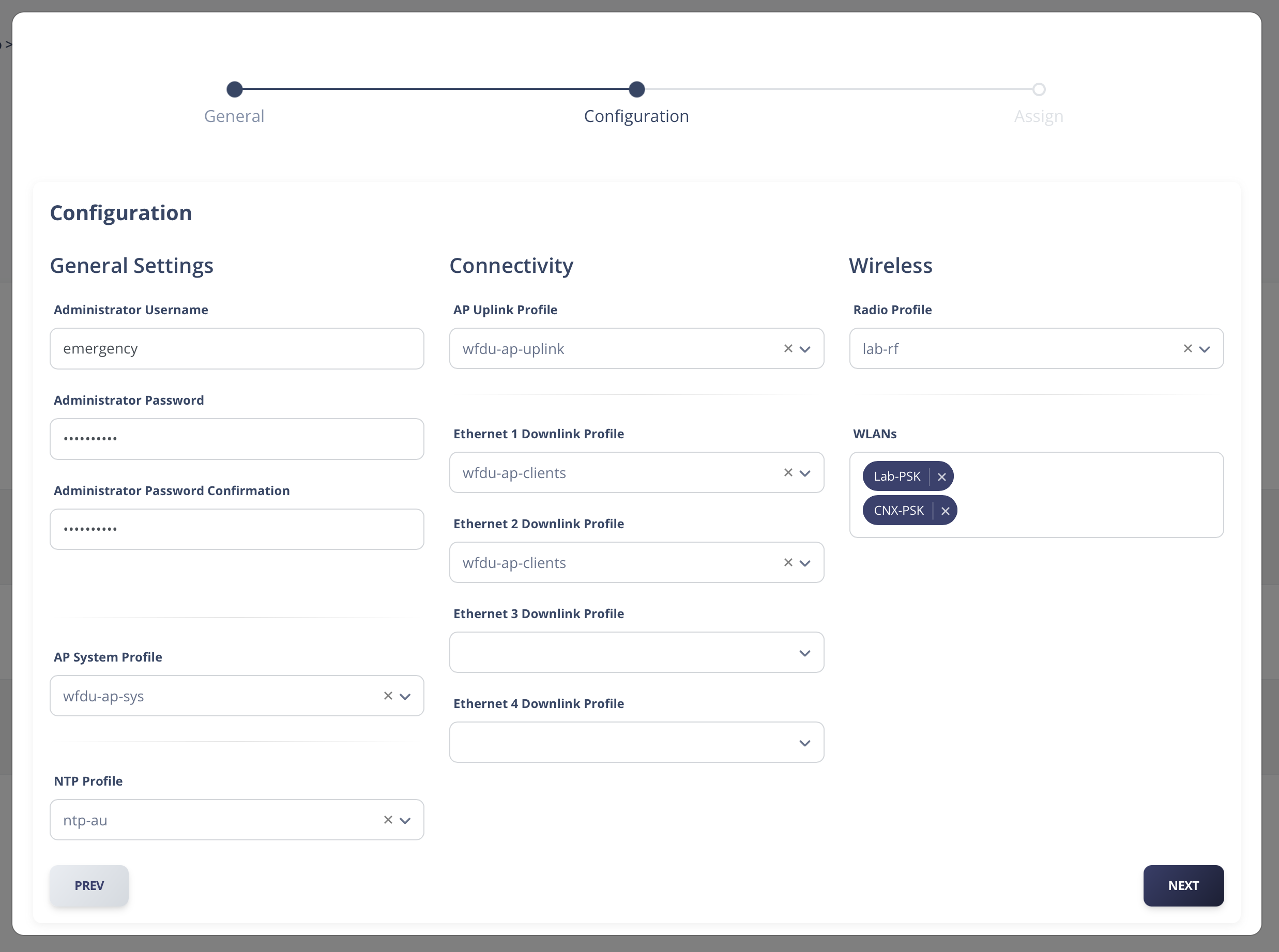
Basic Config Set for Campus AP
Config Sets are currently supported for:
- Campus AP
Two modes of Config Sets are available (the mode can be changed at any point):
- Basic - Provides the minimum profiles that are typically required for a successful deployment
- Advanced - Basic mode profiles + additional profiles that may be used in a more complex deployment
Additional Notes:
- Prefix - unique string used for automatic profile generation. Profiles that may be automatically created include:
- User Administration - In Basic Mode, a unique User Administration profile is generated with the username and password provided
- Interface Profile (Campus AP) - In both Basic and Advanced Modes, a unique interface profile will generated containing the AP Uplink and Downlink port selections
- Empty Profile Selections - By default, profiles without a selection are ignored during the scope assignment process. Existing profiles that are assigned to the selected scopes in Central will remain assigned. Currently selected profiles can be removed from the set by clicking the 'x' on the dropdown. The normal Central hierarchy for profile inheritance is followed if no profile is selected and assigned.
- Unassign unused profiles - Any profiles without a selection will have any existing profile assignments in Central removed. For example: if there is currently NTP profile assigned for the selected scopes in Central, the config set contains no profile selection, and the 'Unassign unused profiles' option is selected, then the NTP profile current assigned to the scopes will be unassigned.
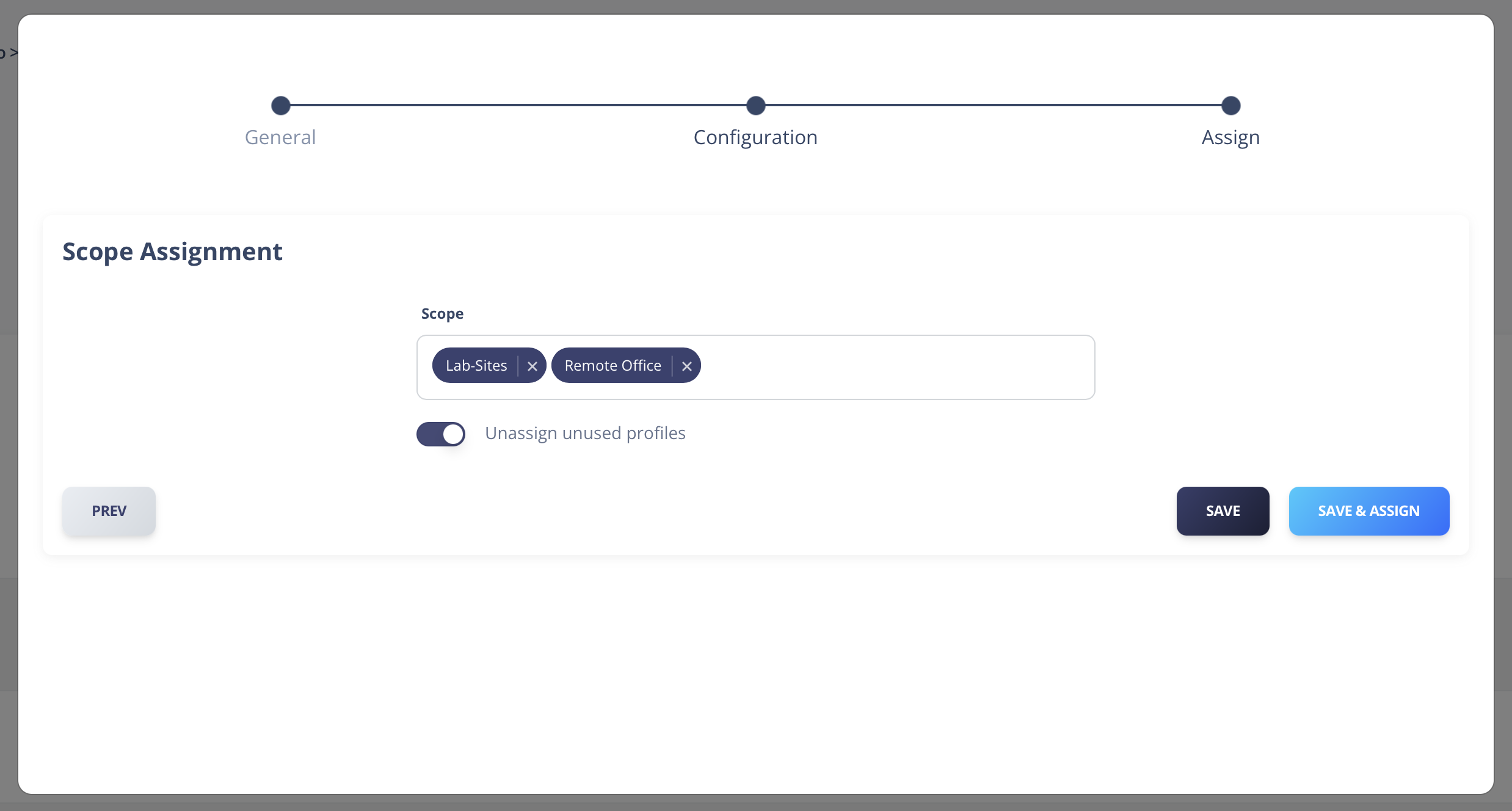
Scope selection (multiple) for a Config Set assignment w/ 'Unassign unused profiles' enabled