Deployment
Profile Table Iconography
The profile tables includes multiple icons:
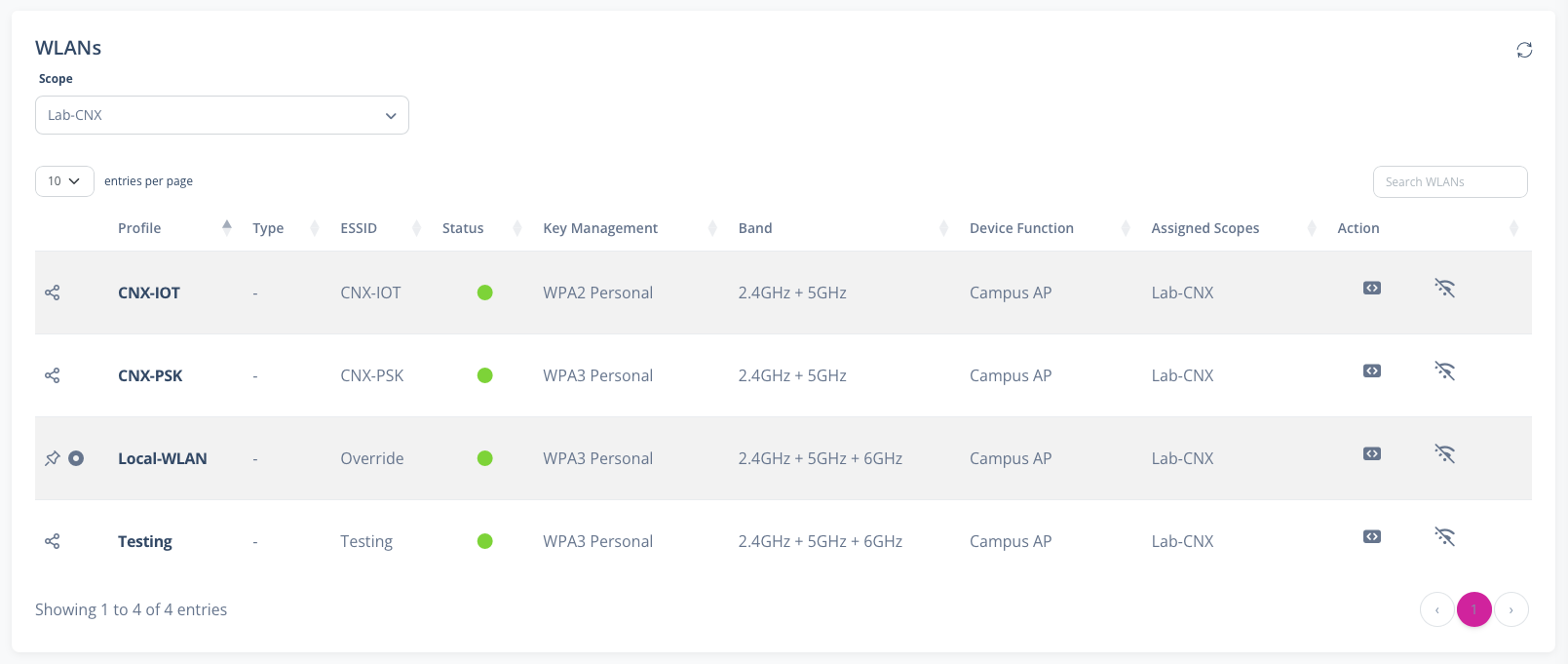
- - Indicates that the profile is a Shared profile (from the Library). Editing of this type of profile will edit the profile in the Library
- - Indicates that the profile is a Local profile
- - Indicates that the profile is inherited from a higher scope
- - Indicates that the profile is overriding a profile higher in the hierarchy. Tooltip shows where the overridden profile is in the scope hierarchy
- - Action button to display the UI editor for the profile
- - Action button to display the JSON editor for the profile
- - Action button to enable or disable the profile
WLANs
The WLAN Profiles page supports making configuration changes to WLAN profiles at various hierarchy scopes.
The Scope selection supports Library, Global, Site Collections, Sites and Device Groups. The scope list is searchable.
The profiles table displays the WLAN profiles at the selected scope (including inherited WLAN profiles)
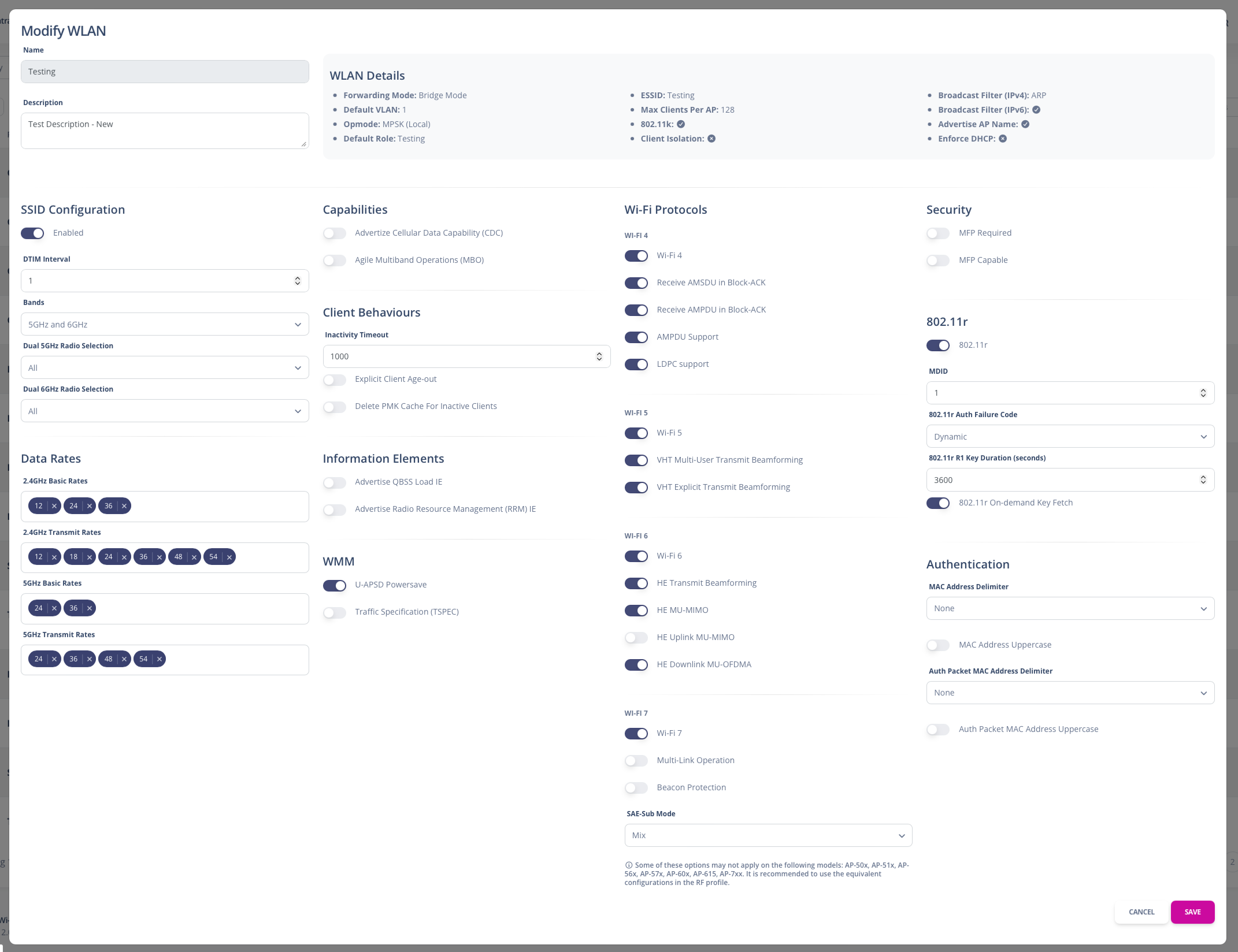
The UI Editor provides the ability to edit many of the WLAN profile configurations that are not present in the Central WLAN profile UI. The top section of the UI provides some of the details of the current WLAN configuration completed in the Central UI.
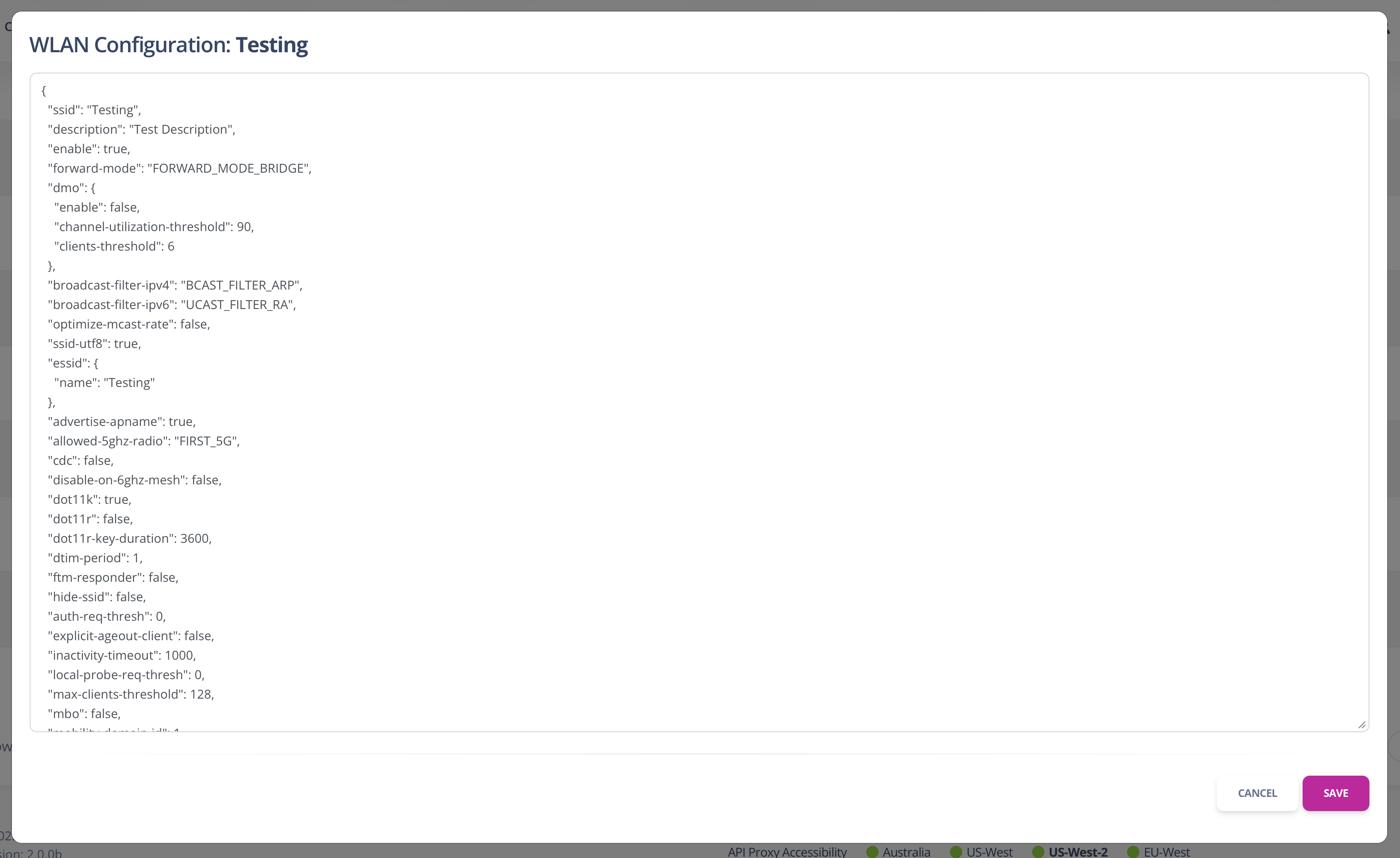
The JSON Editor provides the ability to edit the WLAN profile. This allows configuration of features that are not available in the Central UI. Knowledge of the config structure in Central is required.
RF
The RF Profiles page supports making configuration changes to RF profiles at various hierarchy scopes.
The Scope selection supports Library, Global, Site Collections, Sites and Device Groups. The scope list is searchable.
The profiles table displays the RF profiles at the selected scope (including inherited RF profiles)
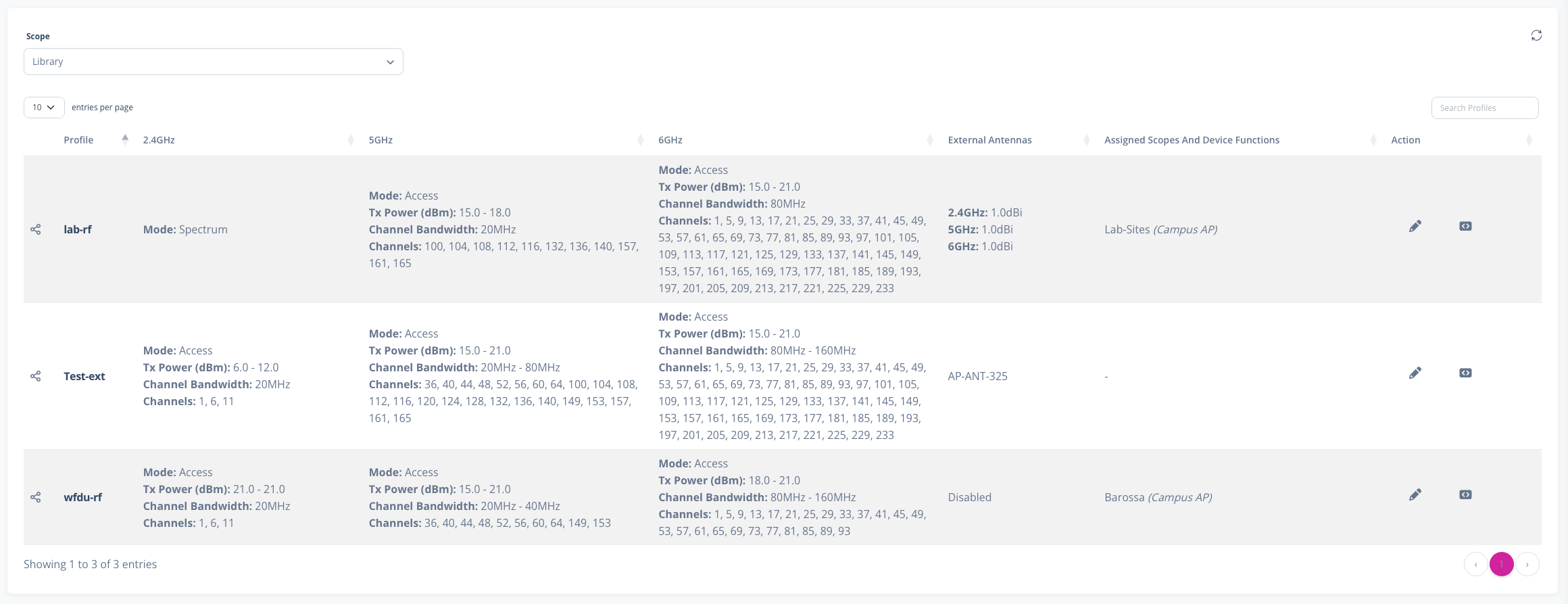
The UI Editor provides the ability to edit many of the RF profile configurations that are not present in the Central RF profile UI. The top section of the UI provides some of the details of the current RF configuration completed in the Central UI.
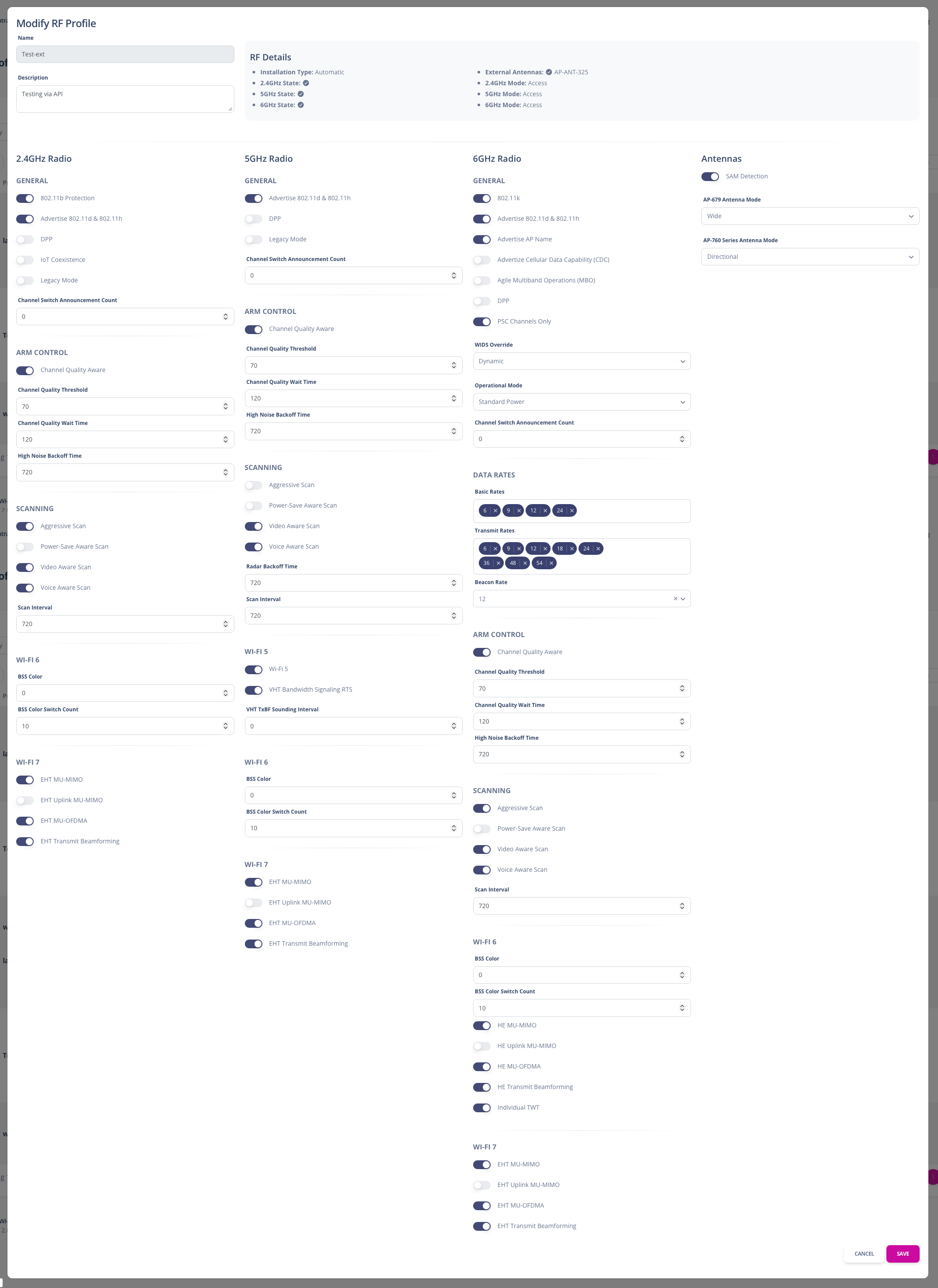
The JSON Editor provides the ability to edit the RF profile. This allows configuration of features that are not available in the Central UI. Knowledge of the config structure in Central is required.
AP System
The AP System Profiles page supports making configuration changes to AP System profiles at various hierarchy scopes.
The Scope selection supports Library, Global, Site Collections, Sites and Device Groups. The scope list is searchable.
The profiles table displays the AP System profiles at the selected scope (including inherited AP System profiles)
The UI Editor provides the ability to edit many of the AP System profile configurations that are not present in the Central AP System profile UI. The top section of the UI provides some of the details of the current AP System configuration completed in the Central UI.
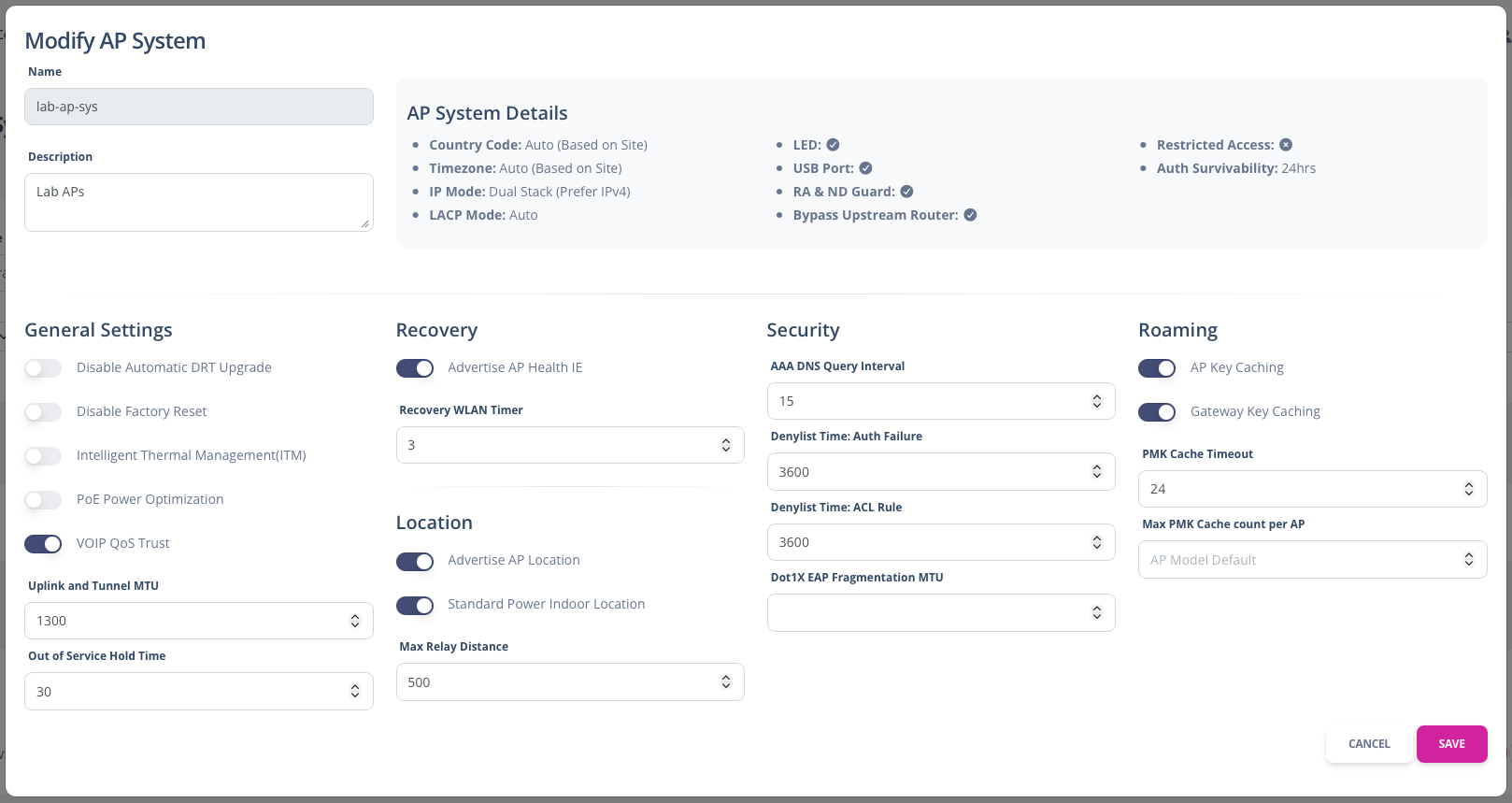
The JSON Editor provides the ability to edit the AP System profile. This allows configuration of features that are not available in the Central UI. Knowledge of the config structure in Central is required.
Mesh
The Mesh Profiles page supports making configuration changes to Mesh profiles at various hierarchy scopes.
The Scope selection supports Library, Global, Site Collections, Sites and Device Groups. The scope list is searchable.
The profiles table displays the Mesh profiles at the selected scope (including inherited AP System profiles)
The UI Editor provides the ability to edit many of the Mesh profile configurations that are not present in the Central Mesh profile UI. The top section of the UI provides some of the details of the current Mesh configuration completed in the Central UI.
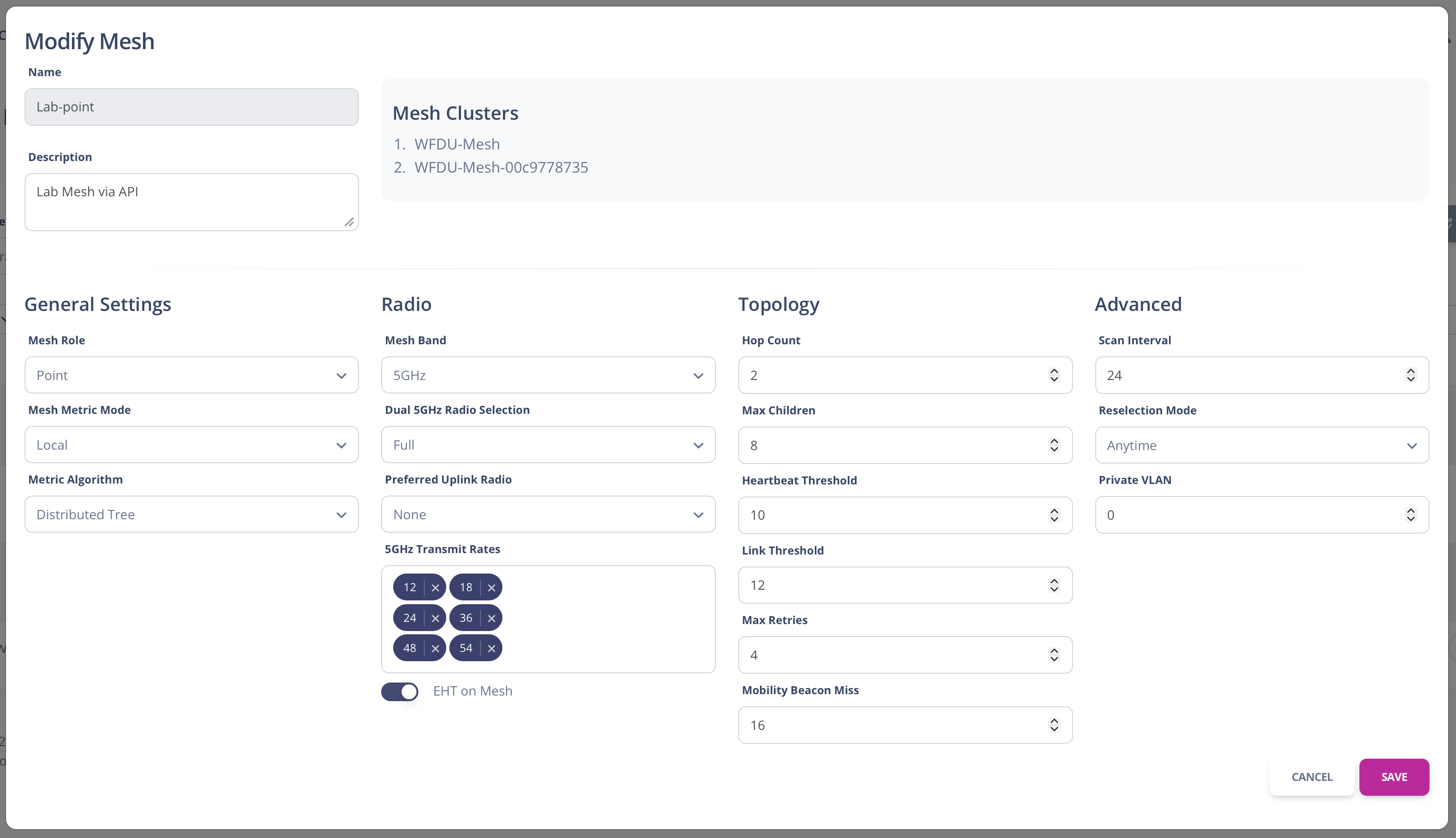
The JSON Editor provides the ability to edit the Mesh profile. This allows configuration of features that are not available in the Central UI. Knowledge of the config structure in Central is required.
VLAN
The VLAN page supports making configuration changes to Layer 2 VLAN profiles at various hierarchy scopes.
The Scope selection supports Library, Global, Site Collections, Sites and Device Groups. The scope list is searchable.
The profiles table displays the VLAN profiles at the selected scope (including inherited VLAN profiles)
The JSON Editor provides the ability to edit the VLAN profile. This allows configuration of features that are not available in the Central UI. Knowledge of the config structure in Central is required.
For Layer 2 only VLANs, the editor opens as a single pane (Layer 2 VLAN).
For VLANs where is-l3-vlan = true, the editor opens as split panes with Layer 2 VLAN and Interface VLAN. Each pane has its own Save action so Layer 2 and Interface JSON can be updated independently.
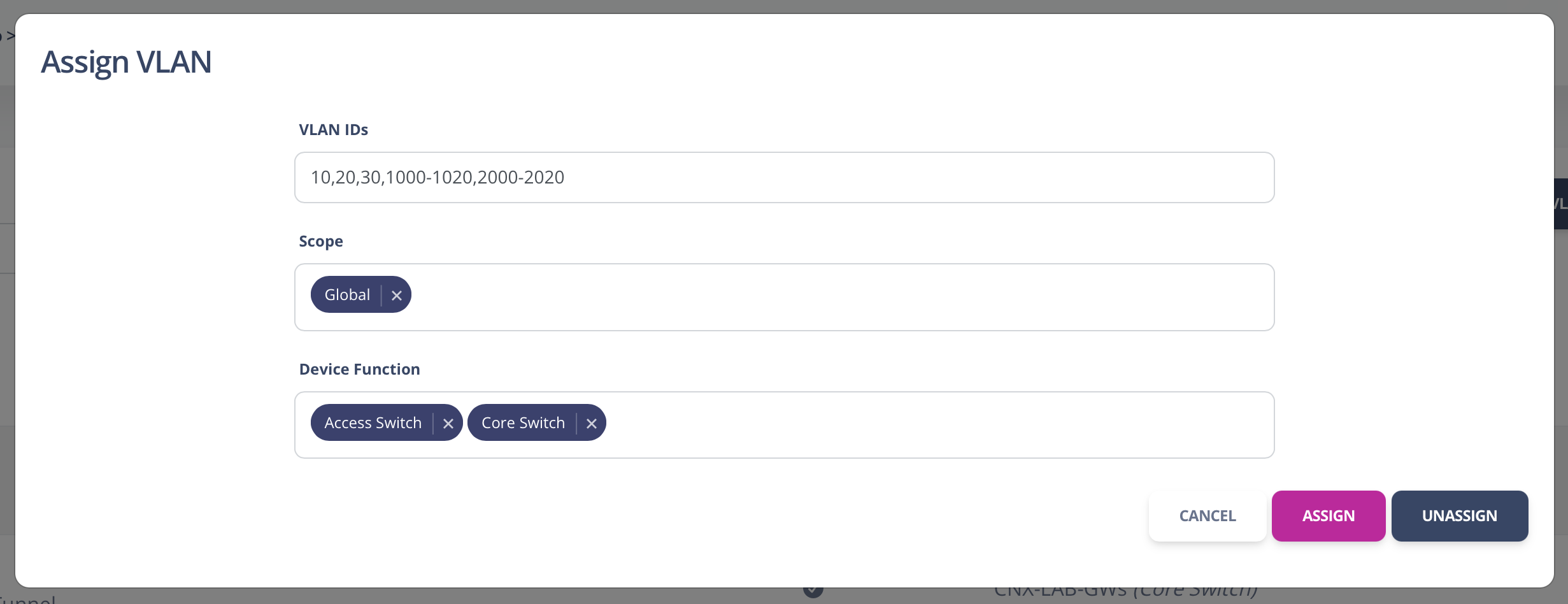
Bulk creation and assignment of VLAN profiles is supported.
Bulk VLAN creation supports entering a list/range of VLAN IDs, as well as basic configuration options to be applied to all the VLANs being created.
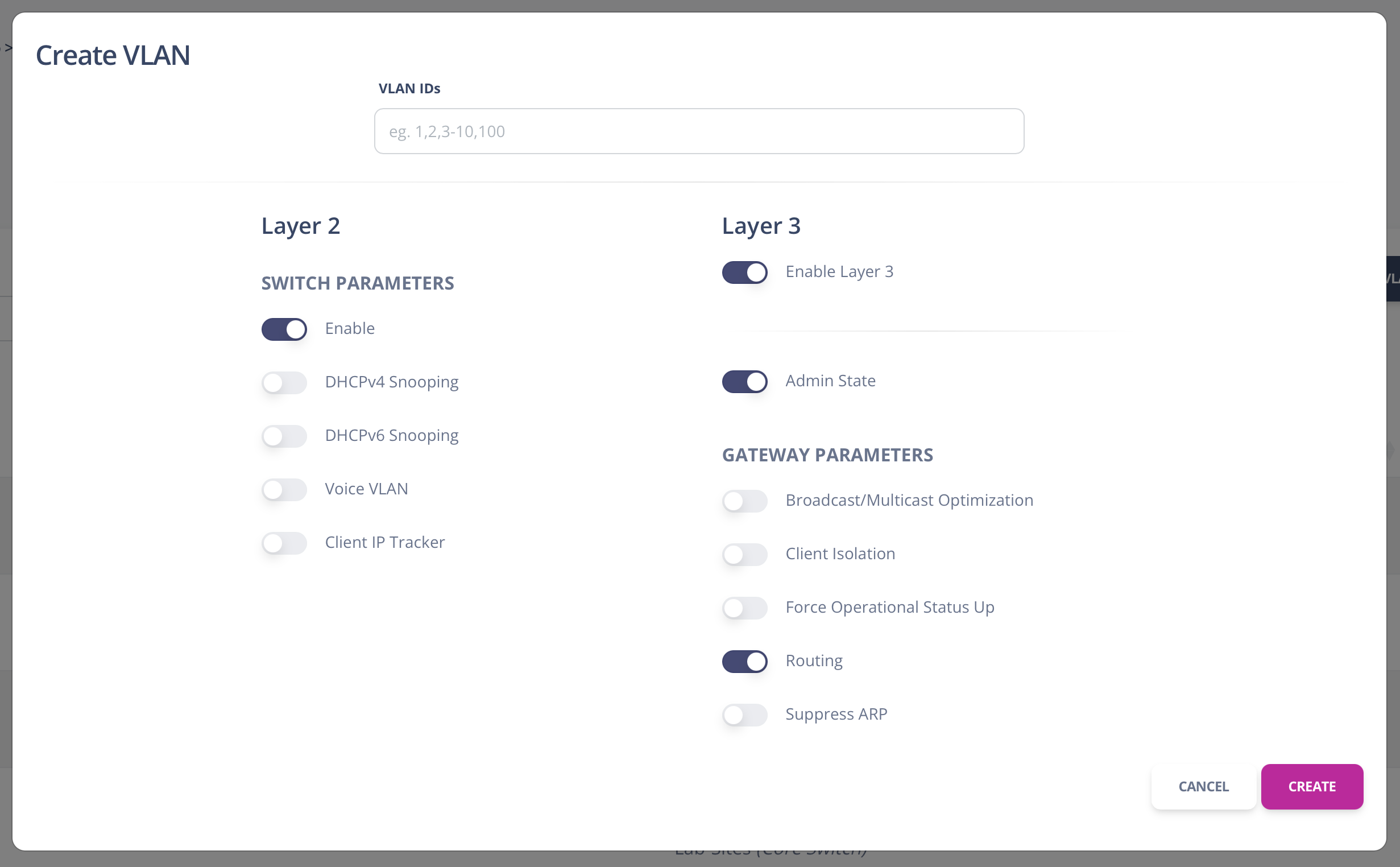
Bulk Assignment and Unassignment supports entering a list/range of VLAN IDs.
AP Ranging Scans
AP ranging scans facilitate using automatic AP placement within the floorplan manager as it allows the system to collect inter-AP ranging information in a much shorter time frame.
During an AP ranging scan, all Wi-Fi client connectivity on the 5GHz radio will be disrupted for the system-calculated scan duration. When the scan completes, the network will automatically restore itself.
To start an AP Ranging Scan, select a Site, a Build and a Floor.
Previous scans and scans that are in progress are displayed for the selected floor in the table